Installing ExcelFSM
The ‘Download’ button allows you to install the current version of ExcelFSM (the full version, not just a demo).
The software will run for 30 days without a license. After that free trial period,
the purchase of a license will allow you to continue using ExcelFSM.
System requirements: Microsoft Excel 2007 or later
A computer running Microsoft Windows XP or later
.NET 2.0
To access QuickBooks Online company files, .NET 4.6.1 or later is required.
To see how to uninstall a previous version, click here.
 ExcelFSM installation (muted video) (1:00)
Installation on a server: click here to see comments from users.
Close Excel (if Excel is running, you will have to close it and restart it to activate the FSM tag).
Click the ‘Download’ button and fill the form
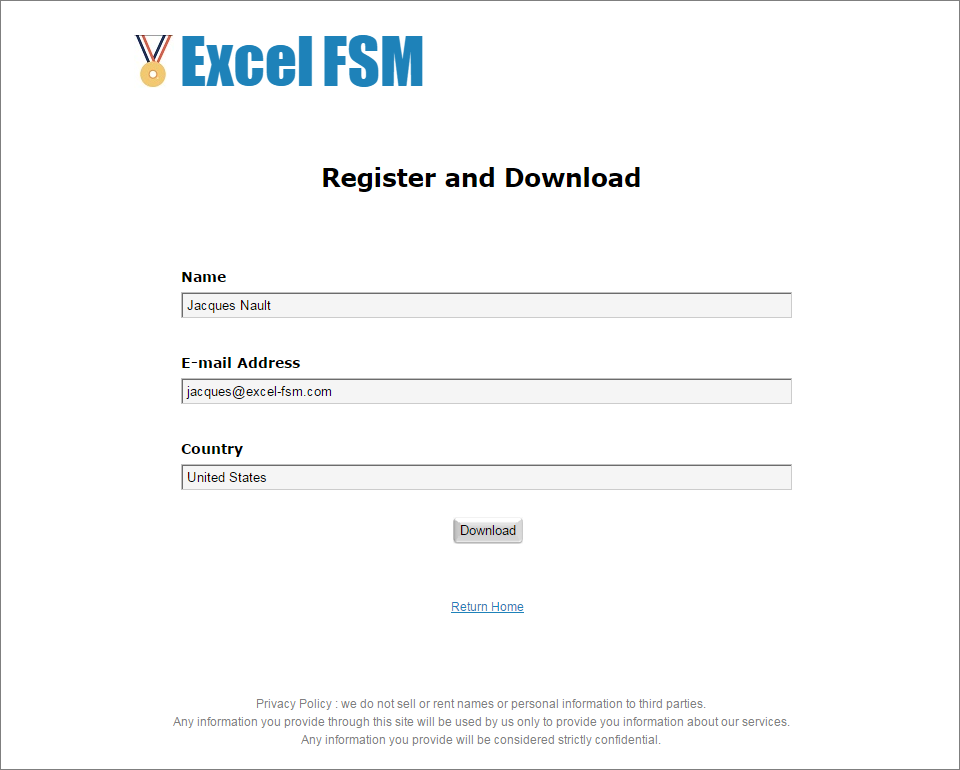
Click ‘Download’
Click the ‘Minimize’ button to make sure you will see the dialogs during the installation
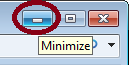
The following dialog is shown
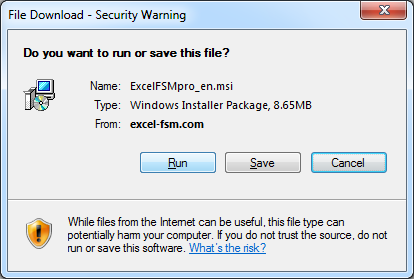
Click 'Run'
The following dialog is shown
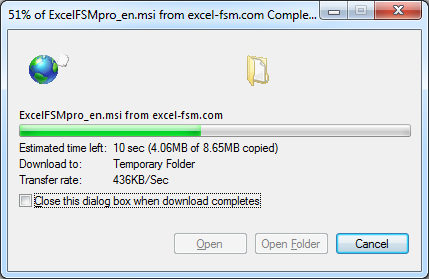
When this process is completed, the following dialog appears
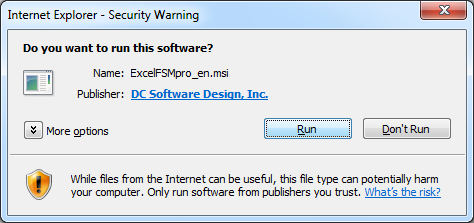
Click 'Run'
The following dialog is shown
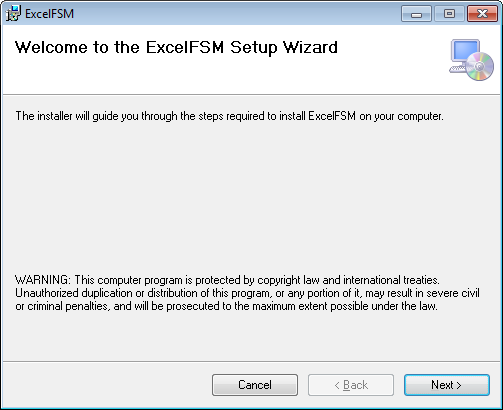
Click ‘Next’
Read the License Agreement
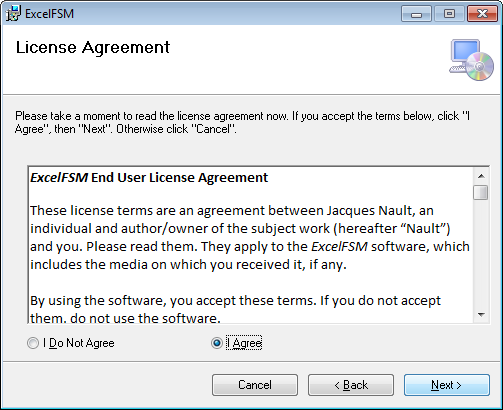
Select ‘I Agree’ and click ‘Next’ to continue the installation of ExcelFSM
The following dialog is shown
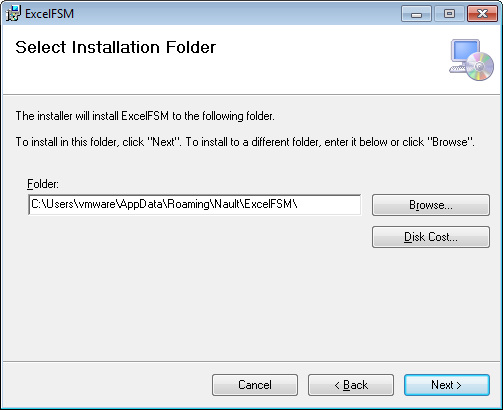
Click ‘Next’
The following dialog is shown
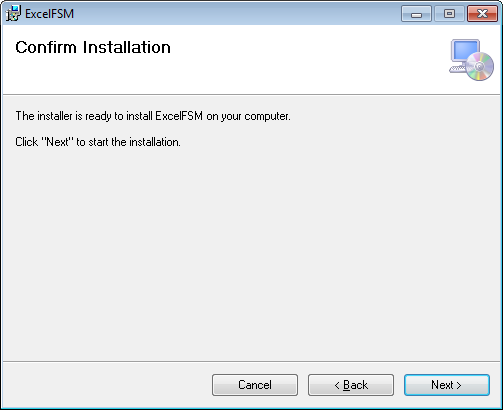
Click ‘Next’
The following dialog is shown
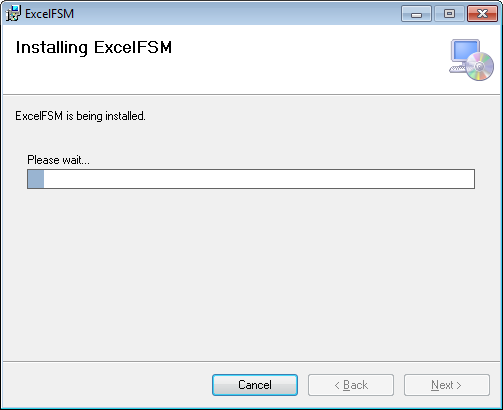
When the installation is completed, the following dialog appears
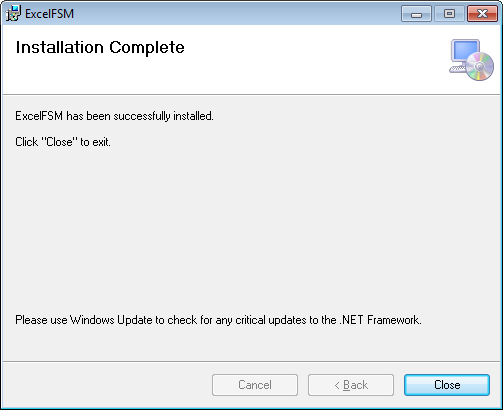
ExcelFSM having been successfully installed, you are now ready to start using it.
Click 'Close'
Starting Excel, you will see the 'FSM' tag

Click here to see tips to get started.