Get Started - ExcelFSM with QuickBooks Online feature
After installing ExcelFSM, an FSM ribbon is added into your Excel

The FSM ribbon contains buttons, separated into groups ordered from left-to-right reflecting the actions you will do to prepare financial reports.
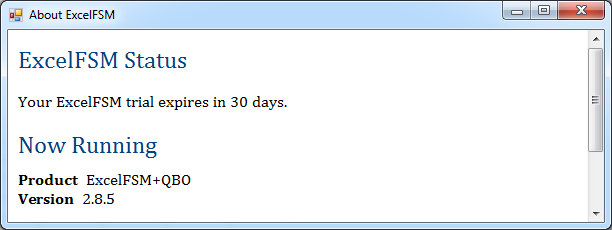
Clicking the ‘About’ button shows the ExcelFSM product and version installed
Clicking the ‘Help’ button opens the Help file
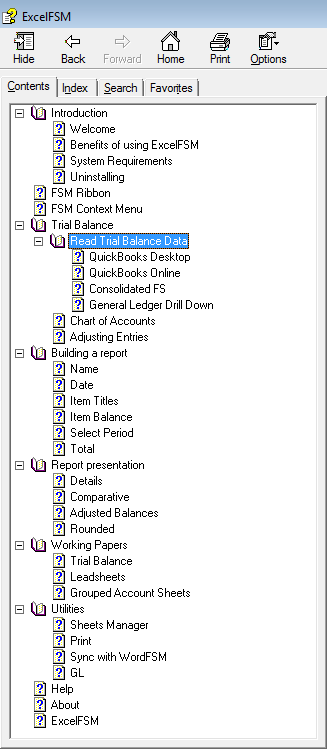
You can always refer to the Help file if you have questions about one of the FSM buttons.
Creating an ExcelFSM QuickBooks Online Company File
To use ExcelFSM with a QuickBooks Online company file, you need to create the file that will contain the tokens allowing ExcelFSM to access the QuickBooks Online company file.
Click this link Creating an ExcelFSM QuickBooks Online Company File.
*** OneDrive : DO NOT SAVE the ExcelFSM QuickBooks Online Company File in a OneDrive folder. ***
You can refer to the ‘Read Trial Balance Data’ topic in the Help file, and to the following videos
 Importing Trial Balance Data / QuickBooks Online (0:41).
Creating the FSM QBOnline company file (1:05).
Building a report
Read this document See how it works.
Watch the following video
Building A Financial Statement (10:37).
Refer to the Help file.
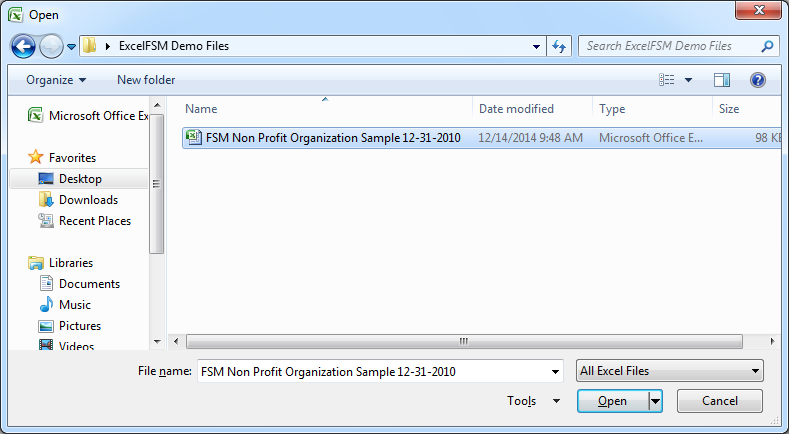
In the demo files, you can refer to the ExcelFSM sample workbook "FSM Non Profit Organization Sample 12-31-2010.xslx".
You can open it in Excel by double clicking its icon, or by performing the File | Open command from within Excel
Furthermore, look at the Tutorials
Feel free to contact us thru the Contact page if you have any question.